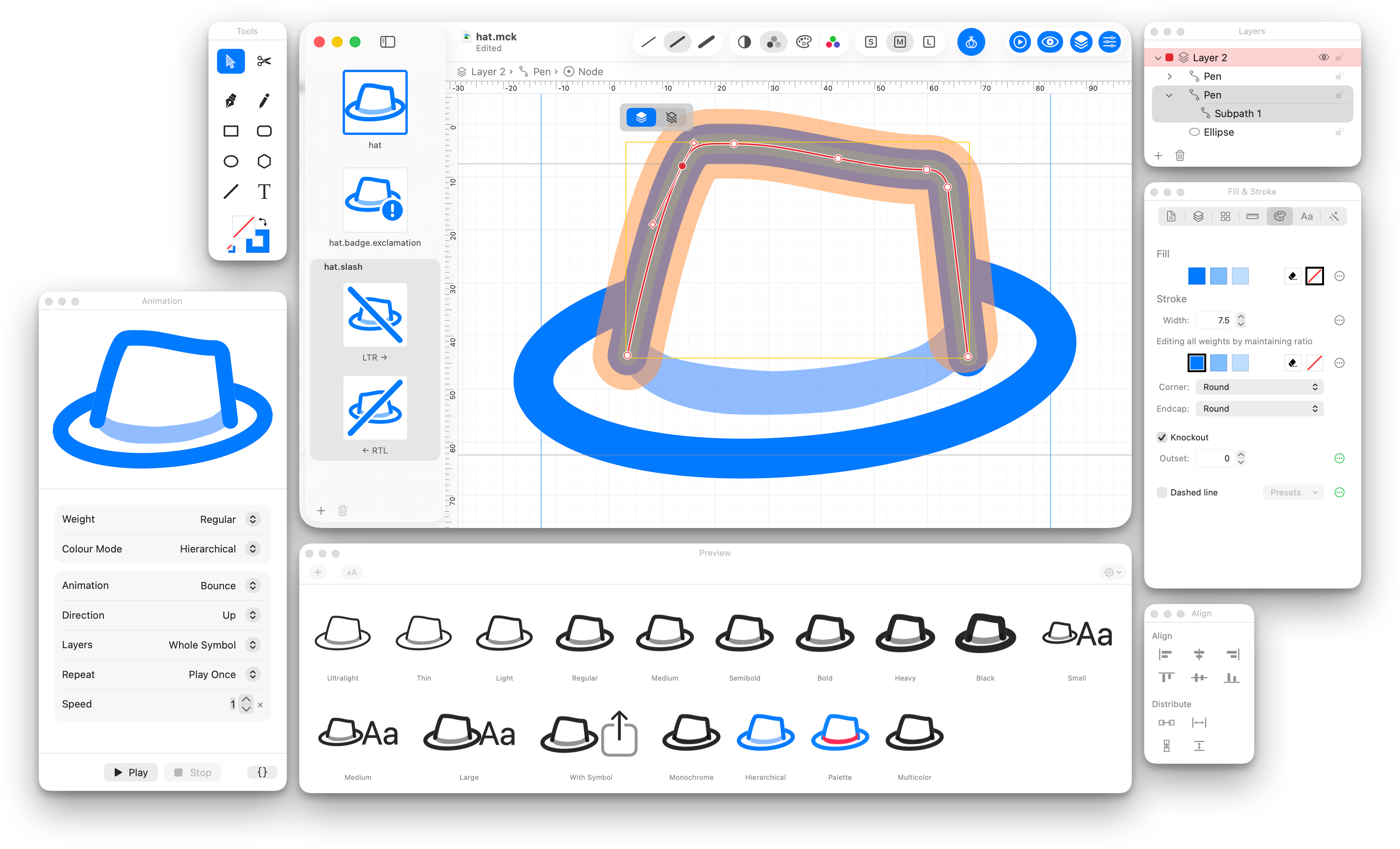
Same objects, three weights
Ultralight through Black, edit the same objects in different weights so they stay point-compatible with each other. Your symbol animates and scales the way Apple's do.
Assign colours to objects
You no longer need to make layers in the SF Symbols app in order to configure colours. Set each object's colour directly, just like you would in any other vector graphics editor.
Paths, Shapes, Freehand Drawing, even Text
McKinley's tools let you add common objects directly to your document. Text stays editable but exports and interpolates correctly, even between font styles!
Layers and Groups
You don't need layers to appease Apple's parser, but they're still useful for your own organisation. Name, rearrange, hide or lock them as needed. You can also group objects, to transform them as one unit.
Live symbol preview
The live-updating Preview palette uses Apple's own SF Symbols renderer, so you can be sure things look how they'll look in your app.
Browse SF Symbols and more
The Symbol Browser lets you load an SF Symbol into McKinley, as a starting point to modify. It also browses Material Symbols, Phosphor and Iconify, for more sources of iconography.
Export for Android or to SVG
Although McKinley is designed around the SF Symbols format, you can also export to Android VectorDrawable and plain SVG, for if you want a common set of iconography across your app's platforms.
Add badges, enclosures, and slashes
The common adornments that make symbol variants are provided, and you can position them how you want. Or make your own variants, starting from your main symbol or starting from blank. If you change your symbol, all the variants update.
Link or unlink geometry across weights while you edit
Linked geometry can be turned on or off at will, making it quick to build a symbol across all three weights, but allowing you the control you need when you need it.
Automate with AppleScript
McKinley is fully scriptable, letting you build it into your workflows however you desire. Want to batch convert a folder of SVGs into SF Symbols? That's easy with AppleScript.
At home on macOS
McKinley is a Mac-assed Mac app: a native AppKit UI, Quick Look previews and thumbnails for your documents, a full AppleScript dictionary for batch work, and the whole user guide offline in Help.
One-time Payment
McKinley is not a subscription. Buy McKinley and use it forever, and receive free 1.x updates.
Support indie development
McKinley is made by indie studio Double & Thrice. We don't take venture capital or gather your data: we build artisan software to empower our users' creativity.
Frequently Asked Questions
- Is McKinley a one-time purchase?
Yes! There's no subscription, and you can use McKinley forever. Your purchase also includes all 1.x updates.
If a McKinley version 2 is released, version 1 owners will be offered a discounted upgrade cost. But even if you decide not to upgrade, your version 1 license will keep working.
- What are the demo limitations?
- For 14 days, you get a fully functional demo, including saving and exporting. (It wouldn't be possible to try out McKinley without bringing your symbols into your app, after all!) After the 14 days, the demo becomes save- and export-disabled.
- How does McKinley handle loading in existing SF Symbols?
Existing SF Symbols, your custom ones or Apple's, don't contain all the extra structure a McKinley document contains (such as line widths, groups, layers etc). You can still import them into McKinley at full fidelity, but you'll be working with a lot of vector shapes rather than stroked lines or text objects.
For Apple symbols imported from the symbol browser, we have a feature "Infer converting paths back to strokes". This makes a best effort attempt to derive which original stroked lines would have created the filled shapes in the symbol. It works best on simple shapes — straight lines, circles, rounded rectangles — but it's safe to use it either way: for any shape it can't infer the strokes, they just import as shapes as they would have done anyway.
- Can McKinley batch convert SVGs to SF Symbols?
- Yes, via AppleScript! McKinley ships with a sample script that does just that, and because it's an AppleScript, you can customise it to suit your own workflow.
- How does McKinley's preview work?
- McKinley's preview uses the actual Apple SF Symbols renderer. It updates live when you make changes to your document, and it doesn't use any private APIs to do this. If you want the technical details, see my blog post about how I did it.
- What can't McKinley do?
- See McKinley Limitations in the user guide.
The main ones: the Draw On and Draw Off effects added in SF Symbols 7 aren't supported;
artwork can't vary between the three sizes (they only scale); and it should be noted that McKinley's automatic interpolation, while very good, does not work in every situation. (If there's ever something McKinley can't interpolate, you'll be notified about it — it never fails silently.)